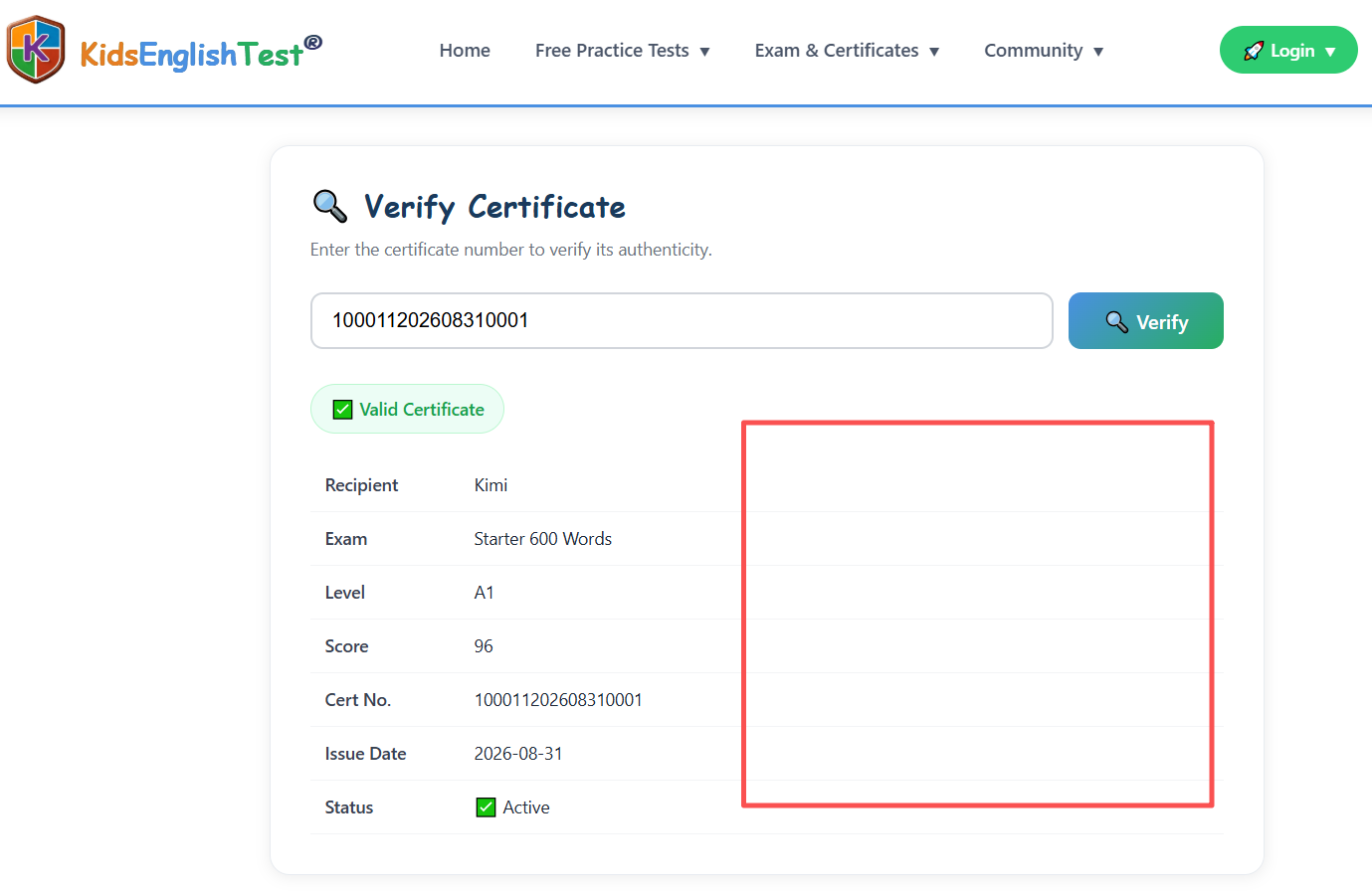
Welcome to the Starter 600 Words Certificate Program
Follow this complete guide to learn words, take the final exam, and earn your verifiable official certificate. Each step is illustrated with screenshots below.
Start Learning Starter 600 Words
Go to Starter 600 Words to see all 22 word categories. Learn vocabulary step by step category by category.
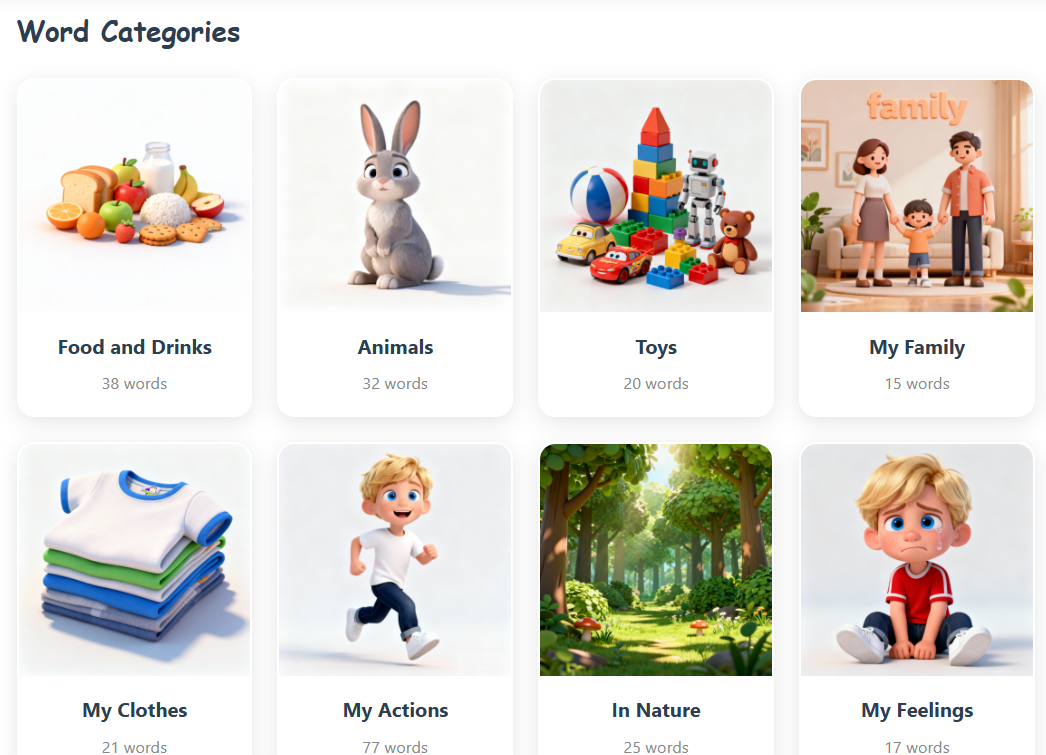
Learn Words in Each Category
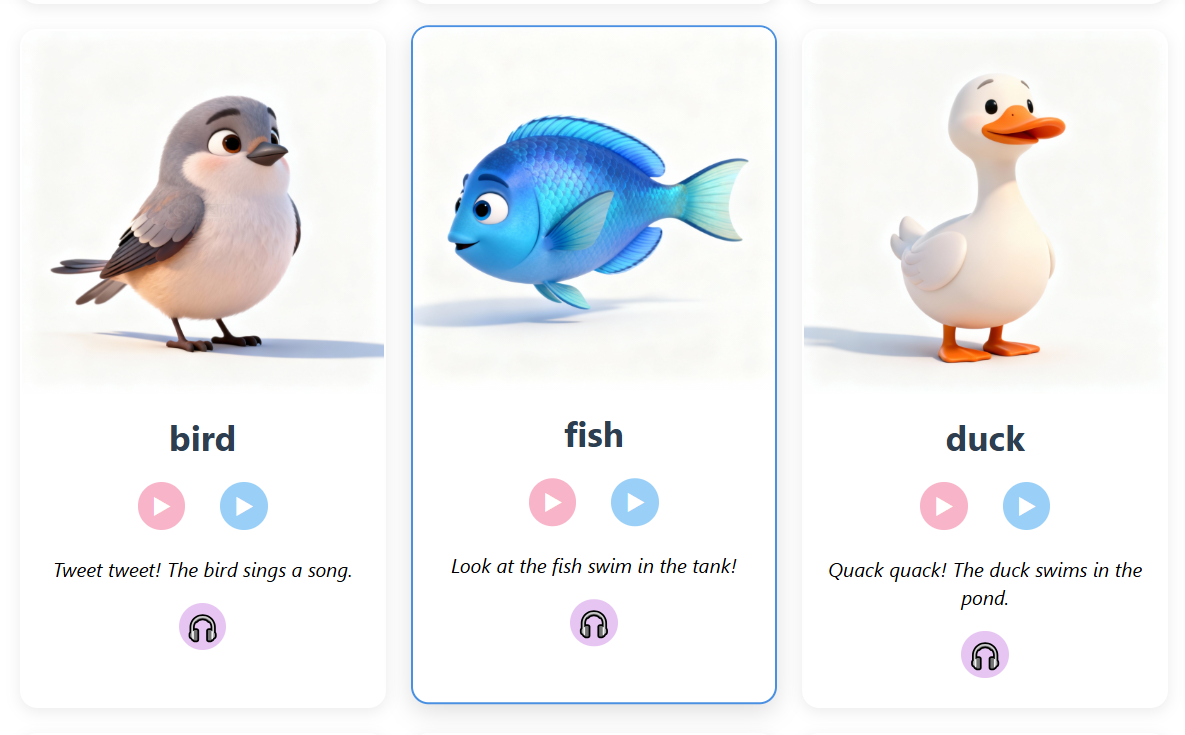
Click on any category to enter the word learning page. You'll see words with images, audio, and practice quizzes.
Practice After Learning
When you finish learning words in a category, click the Practice button to start a quick practice session.
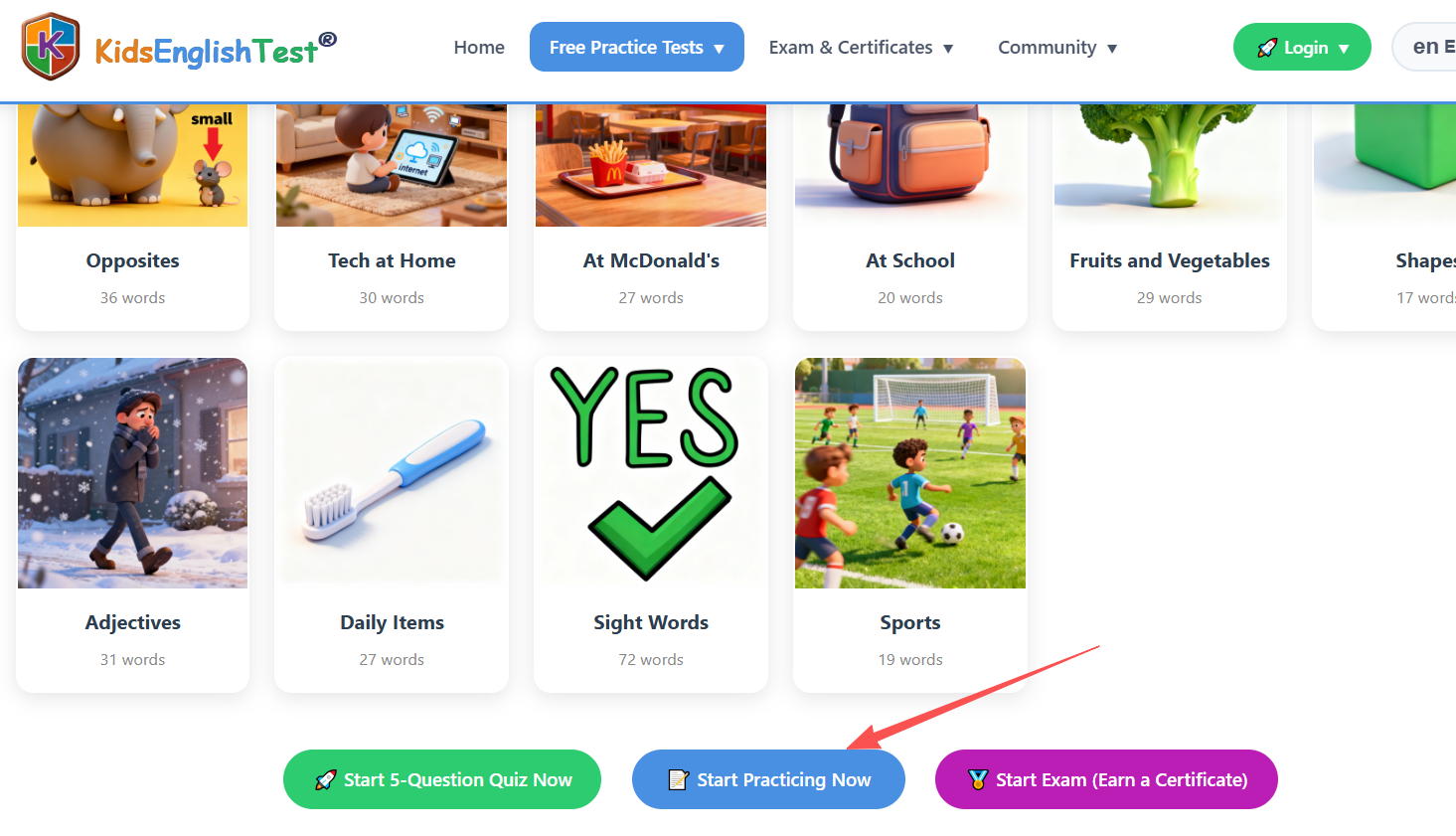
Complete Your Practice
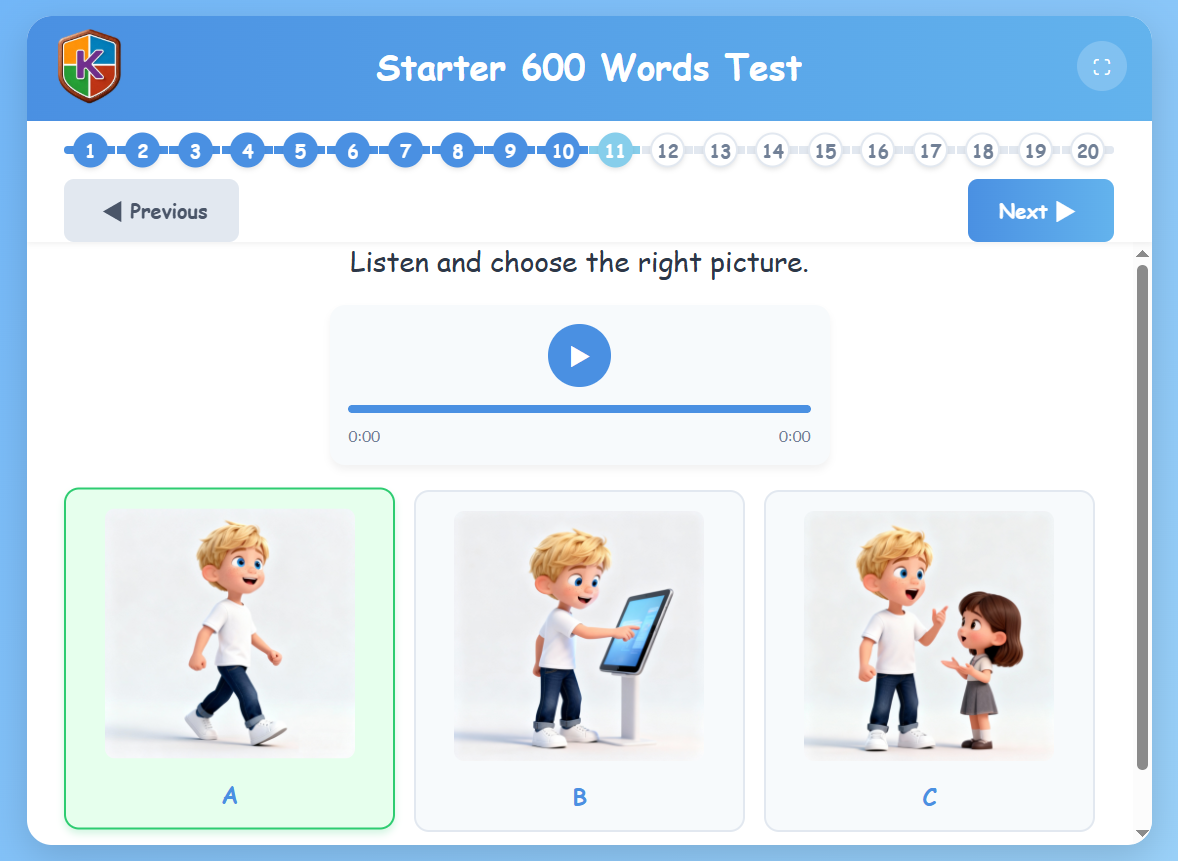
Answer listening questions to reinforce what you've learned. Practice as many times as you want.
Register/Login and Start the Final Exam
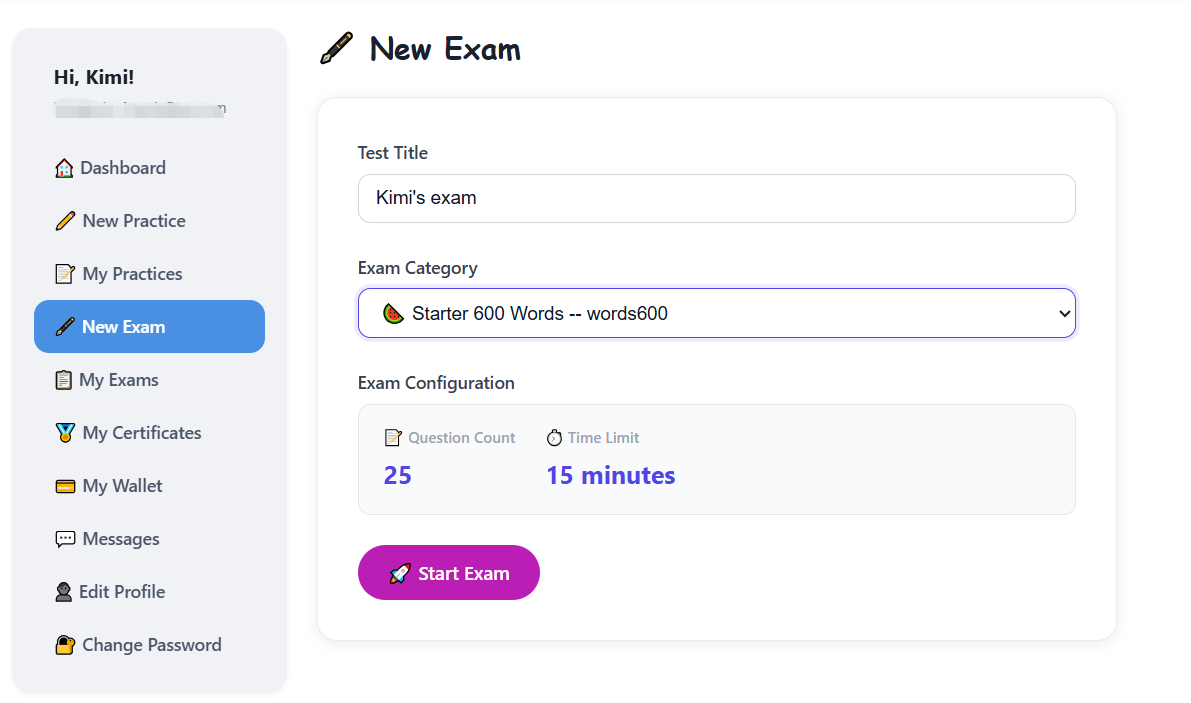
When you're ready, go to New Exam after registering and logging in. Select the Starter 600 Words category and click Start Exam.
Take the Timed Exam
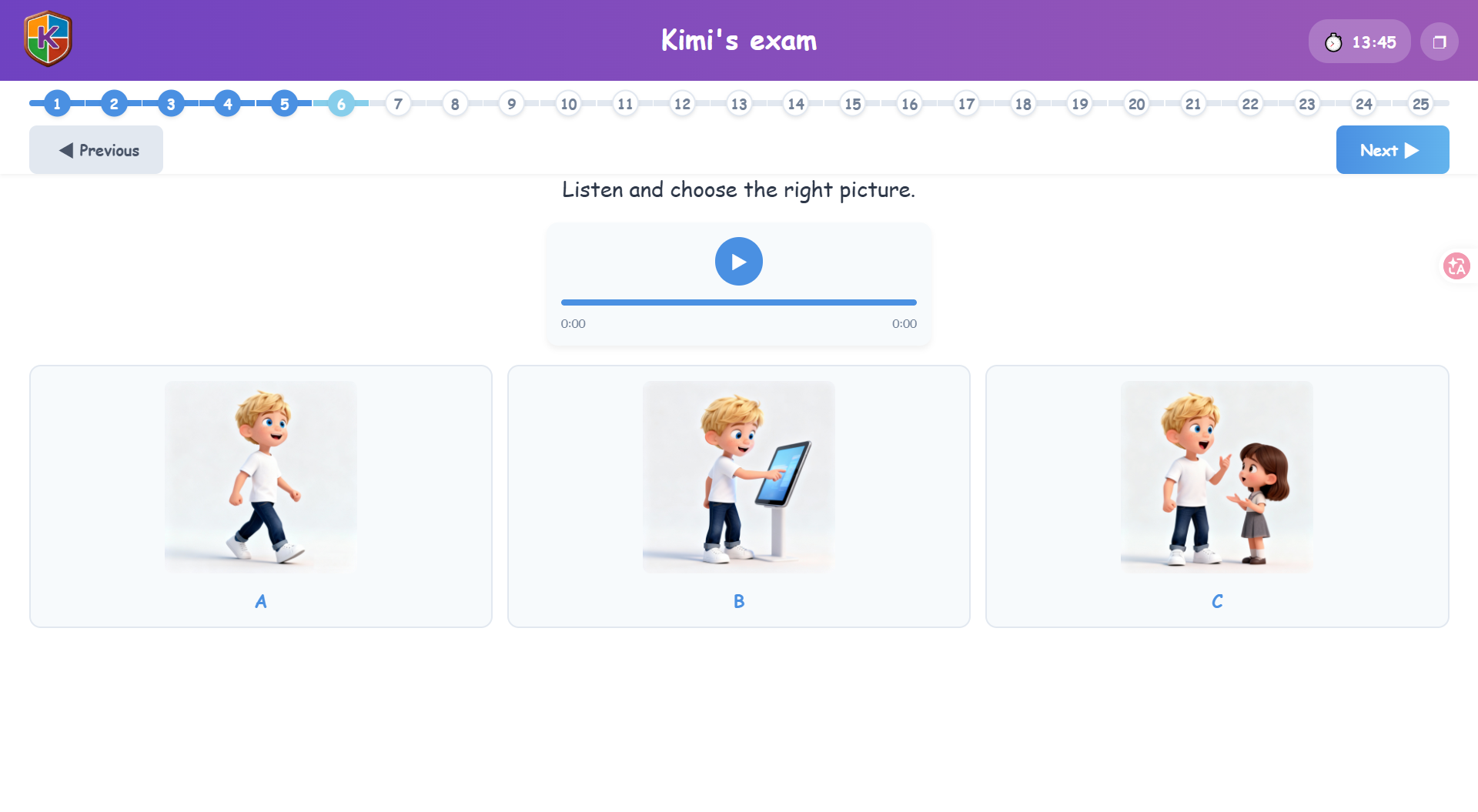
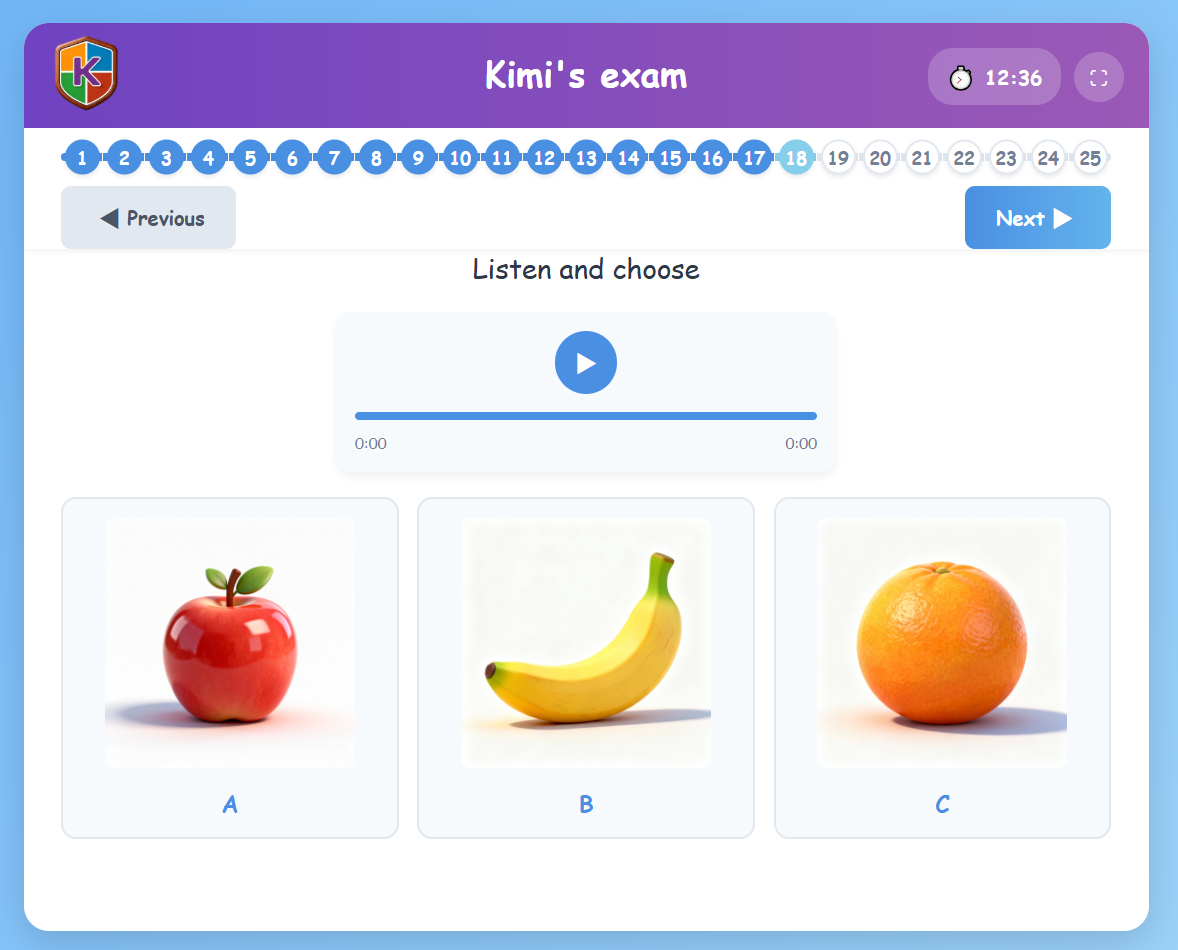
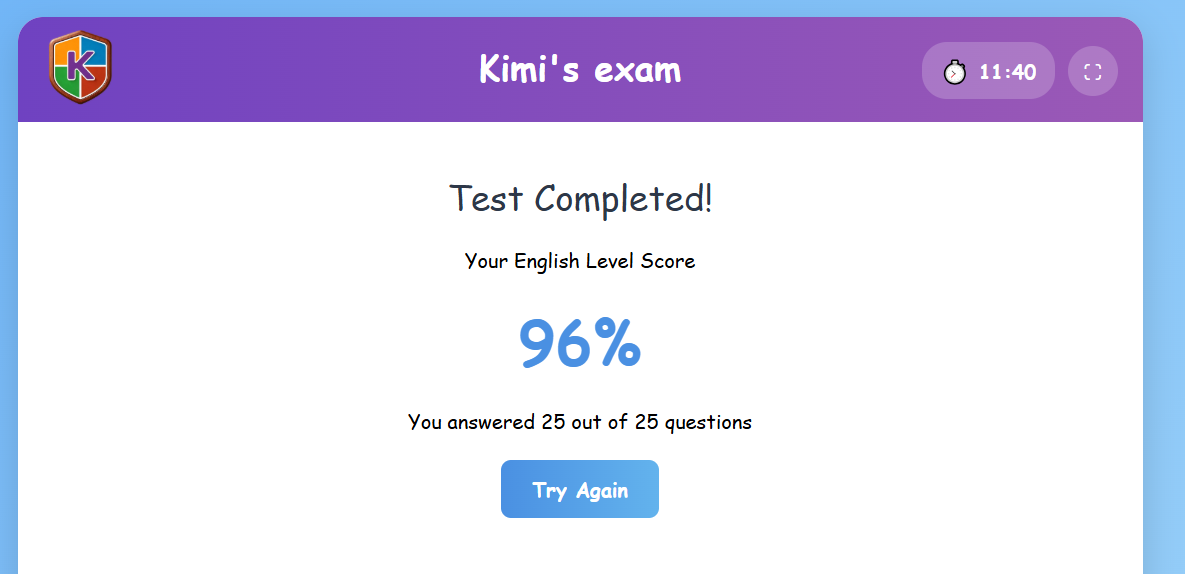
The exam has 25 questions with a 15-minute time limit. Questions are either three-choice image listening or true/false listening.
Submit and See Your Score
After answering all questions, submit your paper to see your final score immediately.
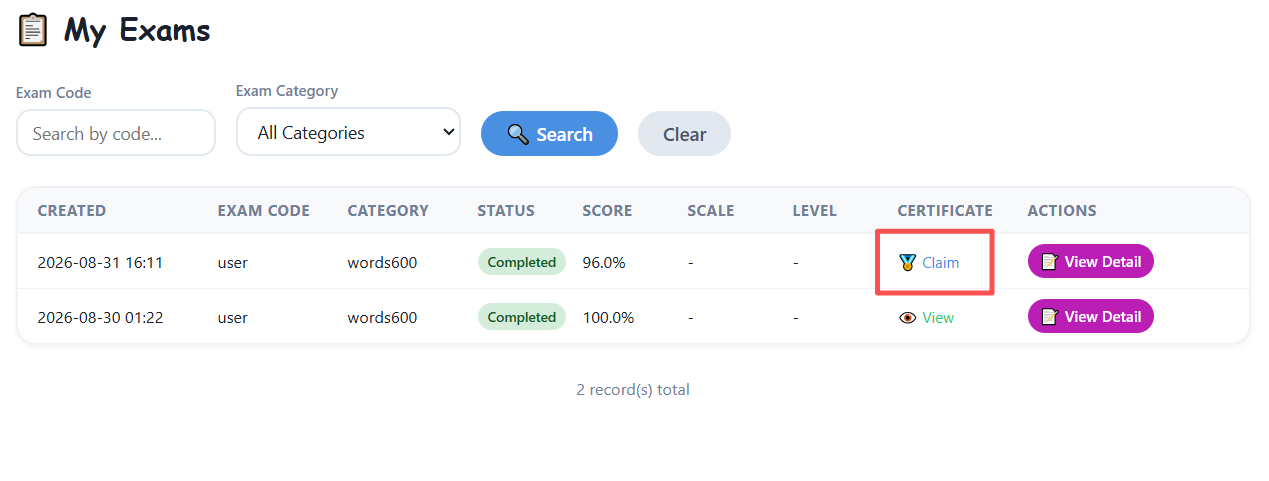
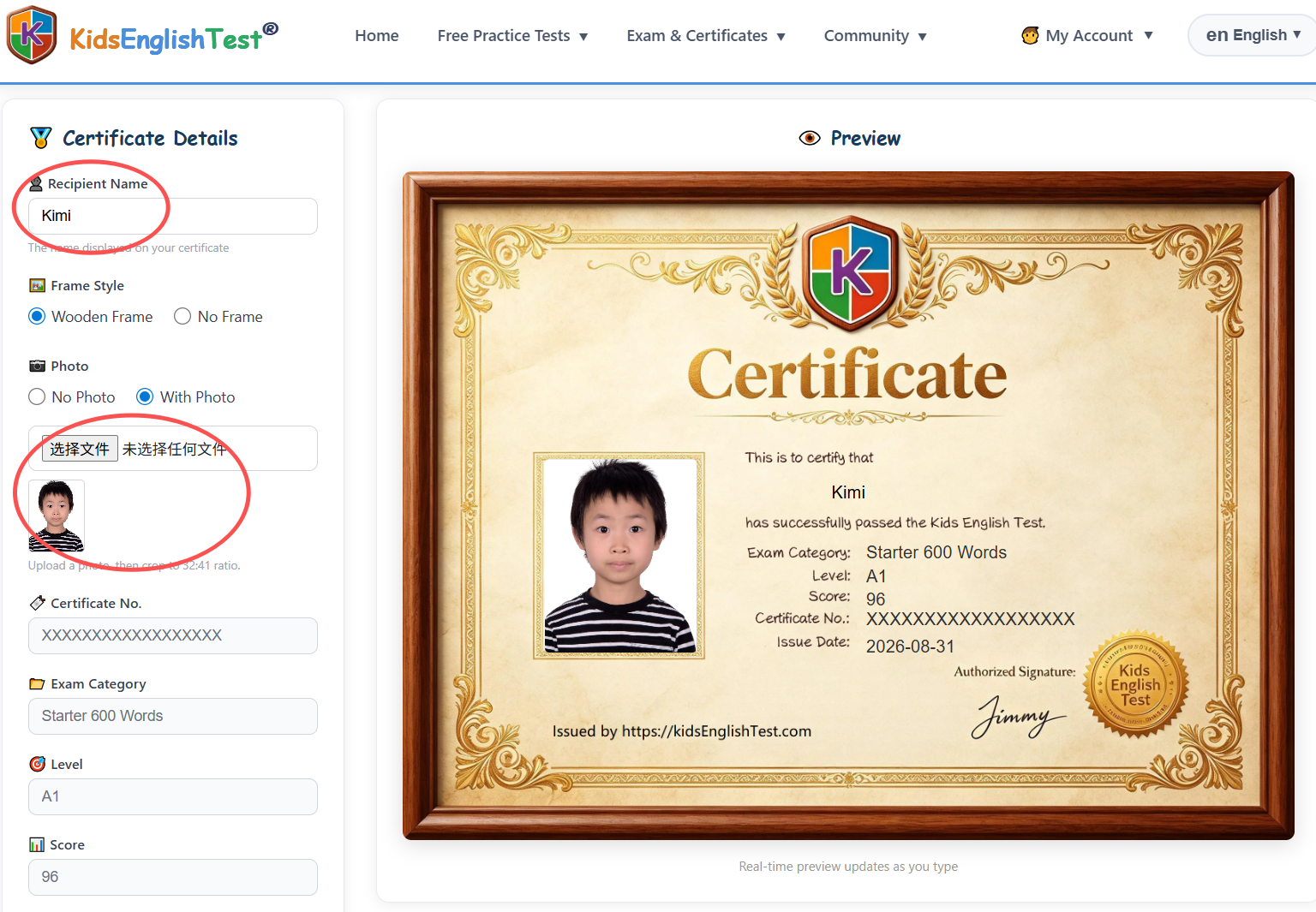
Customize Your Certificate
On the certificate generation page, you can:
- Re-enter the recipient name
- Upload a personal photo
- Choose between wooden frame or no-frame certificate templates
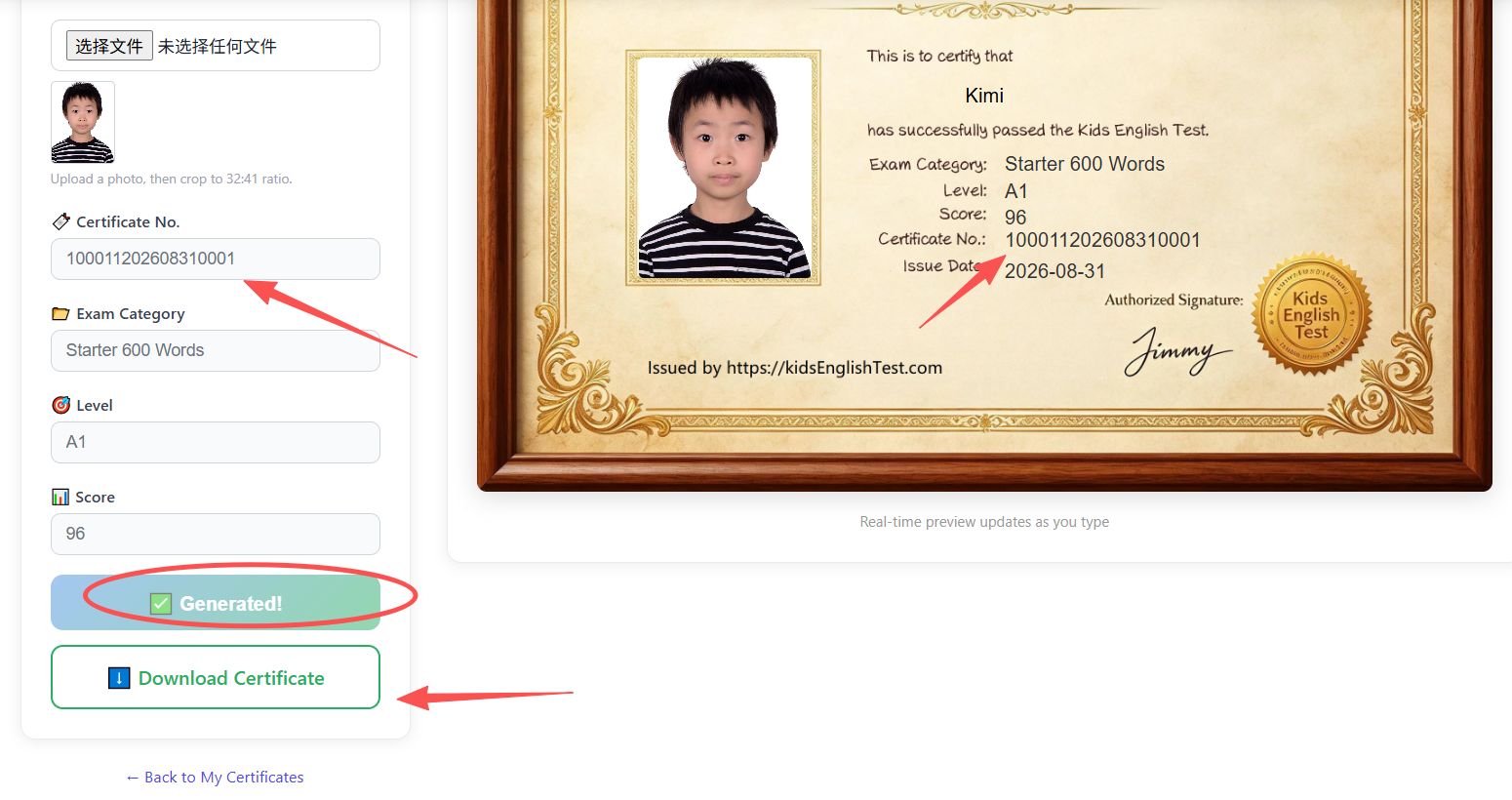
Generate and Download
Click the generate button. After generation, you'll get a unique certificate number and can immediately download your certificate.
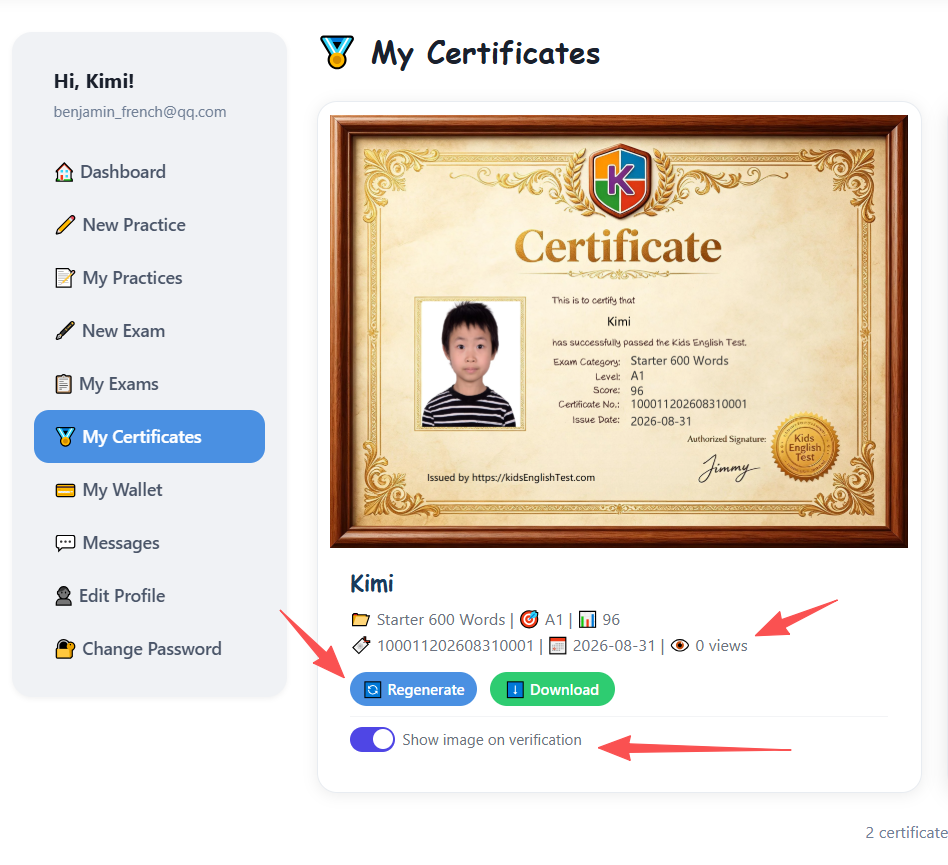
Manage Your Certificates
On My Certificates page, you can:
- View all your certificates
- Regenerate certificates with different settings
- Download certificates anytime
- Toggle whether to show the certificate image during public verification
Public Certificate Verification
Anyone can verify your certificate on the Verify Certificate page by entering the unique certificate number. If you choose not to show the image during verification, only text information will be displayed.